
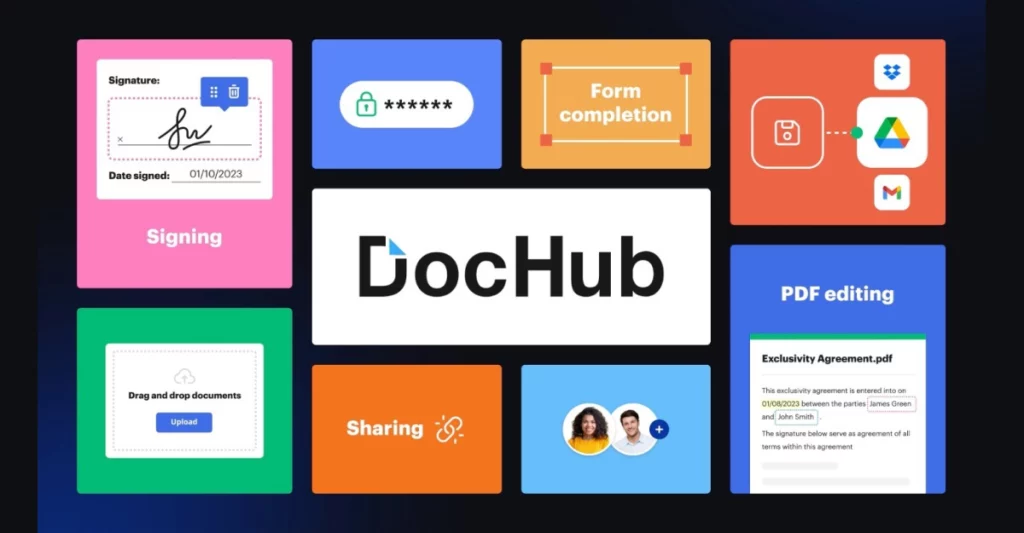
You download a form. It opens as a PDF. You try to click into it to type, and nothing happens.
So you search for a quick fix. Something online. No installs. No complicated setup. Just upload, edit, sign, send, done.
That is usually how people land on DocHub.
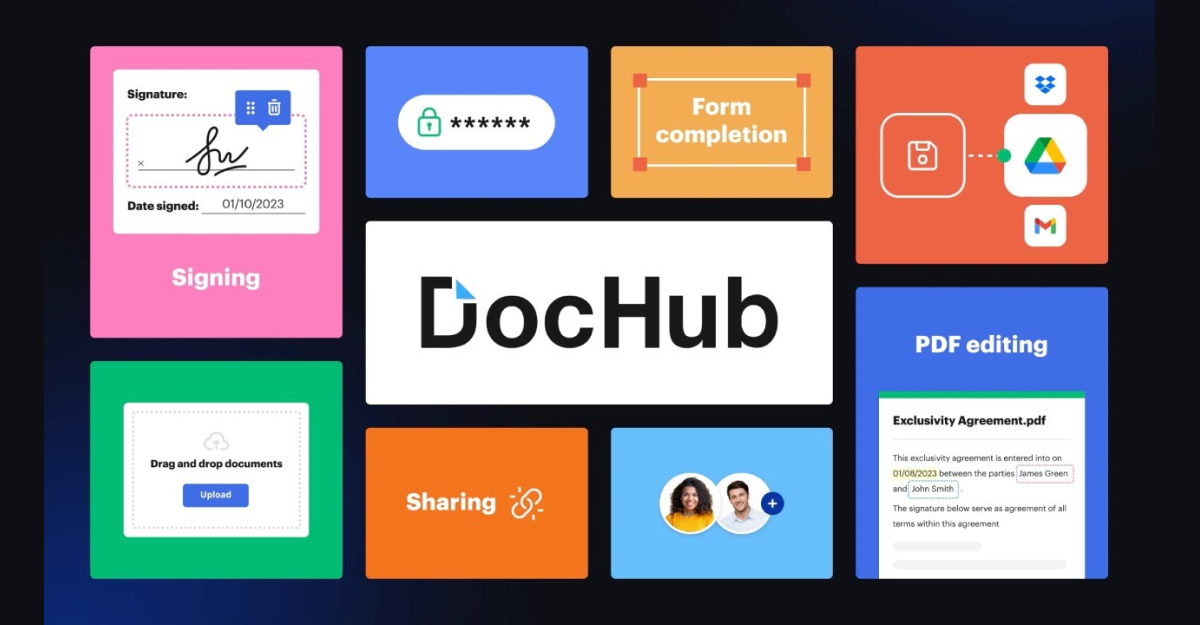
If you handle contracts, school forms, client agreements, or internal paperwork, you just want something that works inside your browser. DocHub positions itself as that kind of tool. A practical online PDF editor with eSignature support and tight Google Workspace integration.
After using it in real situations, here is what it actually feels like.
What is DocHub?
DocHub is a browser-based PDF editor and eSignature platform founded by Chris Devor and based in the Greater Boston Area. You log in, upload a file, and start editing right away. No desktop software. No heavy setup.
In practice, it feels especially convenient if you already live inside Google Drive or Gmail. You can open a PDF straight from Drive, edit it, sign it, and send it back without downloading anything. That alone saves time.
You can:
- Add text anywhere on the page
- Insert images
- Highlight or comment
- Rearrange pages
- Convert PDFs without weird formatting issues
If you regularly deal with forms or contracts, those basics matter more than flashy features.
DocHub is used by millions, and you can tell it is built with collaboration in mind. You can assign roles, control permissions, and even use built-in AI to summarize or rewrite content. For quick document handling, it keeps things simple.
Key DocHub Features
When you open DocHub for the first time, the editing toolbar is straightforward. It feels familiar if you have used other online PDF editors.
You can type over a document, drop in comments, draw, highlight, or add images. The Page Manager is helpful when you need to delete a blank page, rotate a scan, or merge files before sending them out.
On the signing side, you can create an eSignature by typing, drawing, or uploading one. Then you place it where needed. If you need signatures from other people, you can send requests in sequence and track when each person signs.
For freelancers or small business owners sending recurring agreements, reusable templates and bulk sending are genuinely useful. You do not have to rebuild the same form every time.
Collaboration tools also make sense in real work settings. You can leave comment threads, set access permissions, and share via email or link. There is even fax support, which feels old-school but still matters in certain industries.
Here is a quick breakdown of what you get:-
| Feature Category | Specific Tools | Benefits |
| Editing | Text, images, annotations, page manager | Quick modifications without software |
| Signing | eSignatures, requests, templates | ESIGN-compliant, trackable helpdesk |
| Collaboration | Real-time sync, permissions, AI | Team efficiency, secure sharing |
What this really means is you can go from raw PDF to signed document without switching tools.
Is DocHub Free? Pricing Details
Yes, DocHub has a free plan. But it comes with limits.
You can edit or sign up to 3 documents per month and send 3 sign requests. For occasional use, that is usually enough. If you just need to sign a lease, submit a school form, or tweak a client agreement once in a while, you probably will not hit the limit.
The free tier also includes AI access and mobile app use. There are no watermarks, which is a big plus. Nothing is more annoying than finishing a document and seeing a forced logo stamped across it.
Paid plans start around $4.99 to $8 per user per month when billed annually. The jump to Pro mainly removes limits and adds advanced security like HIPAA compliance, custom branding, and organization tools.
If you work with sensitive documents or high volume, the upgrade makes sense. If you only need a PDF editor free option for light tasks, the free plan holds up surprisingly well.
This is how the plans are:-
| Plan | Monthly Price (Billed Annually) | Uploads | Sign Requests | Security/Extras |
| Free | $0 | 3 docs/month | 3/month | AI access, mobile feisworld+1 |
| Pro | $4.99/user | Unlimited | Unlimited | HIPAA, branding saasworthy+1 |
| Enterprise | Custom | Unlimited | Unlimited | SSO, API, compliance saasworthy |
How to Use DocHub: Step-by-Step
Getting started is simple.
Go to dochub.com and complete the dochub sign in using Google, email, or SSO. If you use Google Workspace, signing in with Google is the fastest path.
From the dashboard, click “New Document.” You can upload from your device, Google Drive, Dropbox, a URL, or start with a blank document.
Once inside the editor:
- Use the toolbar to add text or images
- Click Sign to create and save your signature
- Place it where needed
- Save or export the finished file
If you need someone else to sign, send a signature request and track its status from your dashboard.
The mobile version mirrors the desktop experience fairly well. It is useful when you need to sign something on your phone and move on.
Here is the general flow:-
| Step | Action | Tips |
| 1. Login | dochub sign in via Google/email | Enable 2FA pdfliner+1 |
| 2. Upload | Drag/drop or integrate Drive | Supports URLs |
| 3. Edit/Sign | Use toolbar for tools | Save signature library |
| 4. Share | Email/link, track status | Set permissions |
If you have used other online PDF tools, you will pick this up quickly.
Is DocHub Safe and Legit?
Short answer: yes, DocHub is safe and legit.
It is backed by airSlate, the company behind SignNow. Security includes 256-bit SSL encryption, SOC 2 Type II certification, GDPR compliance, and HIPAA support on paid plans. Two-factor authentication and audit trails are available.
From a user perspective, what matters most is whether your documents feel secure. You can password-protect files, control access, and track activity. That covers most everyday business needs.
There have been no major public security incidents tied to DocHub. Reviews on Trustpilot average 4.8 out of 5 from thousands of users, with many highlighting ease of use and security.
Like any cloud-based document platform, you should enable 2FA and use strong passwords. That extra step is worth it if you handle contracts or financial paperwork.
| Security Feature | Description | Compliance |
| Encryption | 256-bit SSL, end-to-end | Yes dochub |
| Standards | SOC 2 Type II, GDPR, HIPAA | Paid plans |
| Auth | 2FA, OAuth 2.0, audit trails | All plans |
For most professionals and small businesses, this level of protection is more than adequate.
DocHub Sign In and Account Tips
The dochub login process is quick. Visit the site, choose Google or email, and you are in.
If you are on a paid plan, SSO options are available. The dashboard shows your documents, templates, and recent activity in a clean layout. It does not feel cluttered.
If you forget your password, the reset process is standard and secure. Turning on 2FA is a good idea, especially if you share devices or work with sensitive files.
One small tip: organize documents into folders early. Once you start sending multiple contracts or forms, that structure saves time.
DocHub vs. SignNow Comparison
DocHub and SignNow come from the same parent company, airSlate, but they serve slightly different purposes.
DocHub leans toward being a practical online PDF editor with built-in signing. SignNow focuses more heavily on advanced eSignature workflows and automation.
If your main goal is editing PDFs and occasionally collecting signatures, DocHub feels more approachable. The free tier also gives it an edge for individuals or light users.
If you manage large teams and complex approval chains, SignNow may offer deeper automation and reporting.
| Aspect | DocHub | SignNow |
| Free Tier | 3 docs/month | Trial only |
| Editing Depth | Full PDF tools | Signature-focused |
| Starting Price | $4.99/mo | $8/mo |
| User Rating | 4.8/5 Trustpilot | 4.7/5 |
It is less about which one is better and more about what you actually need.
User Reviews and Ratings
Most users mention how intuitive DocHub feels. You upload a file and start working. No learning curve. No software download.
Trustpilot shows a 4.8 out of 5 rating from over 2,500 reviews. Many comments highlight Gmail and Google Drive integration as a major time saver.
Freelancers appreciate the value of the free plan. Small businesses like the template and bulk sending features.
Some complaints mention hitting limits on the free tier or minor signup quirks. That is fairly typical for freemium tools.
Here is how ratings look across platforms:
| Review Site | Rating | Reviews Count | Top Praise |
| Trustpilot | 4.8/5 | 2,500+ | Ease, integration |
| Software Advice | 4.7/5 | High volume | PDF editing |
Overall, feedback skews positive, especially from everyday users rather than enterprise buyers.
Why DocHub Stands Out?
DocHub stands out because it does not try to do everything. It focuses on letting you edit a PDF, sign it, share it, and move on.
For students, freelancers, and small business owners, that simplicity matters. The free plan is usable. The paid plans are reasonably priced. The Google integration works the way you expect.
Is it perfect? No tool is. But if your goal is handling PDFs quickly without installing software or navigating complicated dashboards, DocHub feels practical and dependable in 2026.
